How To Solve A Challenge In Cloud CTF - Player
Abstract
This article details how to solve a challenge. For help in solving challenges, reach out to your CTF admin, as the Virginia Cyber Range does not assist players in solving challenges. For more player information on Cloud CTF, please refer to the article titled Getting Started in Cloud CTF.
Viewing and Solving Challenges
-
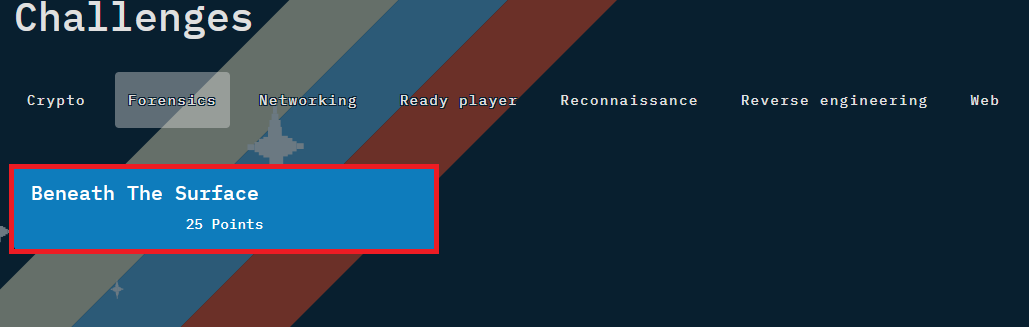
To begin solving a challenge, navigate to the Challenges page of Cloud CTF. Select the challenge you would like to complete. We will use Beneath the Surface as our example.
-
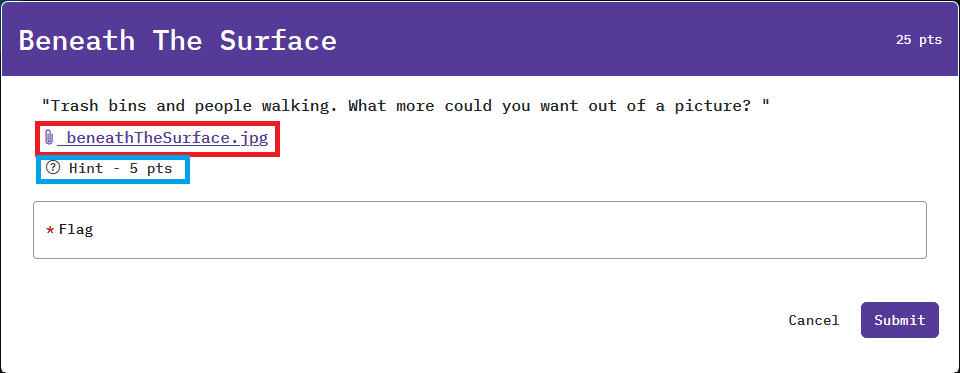
Once you select your challenge, a pop-up window will open. This window will show the challenge text, any necessary links or attachments, and any possible hints.
-
Clicking on the attachment link, shown beneath the challenge text and outlined in red in the above image, will download the file to your computer. View the file through your own chosen application.

-
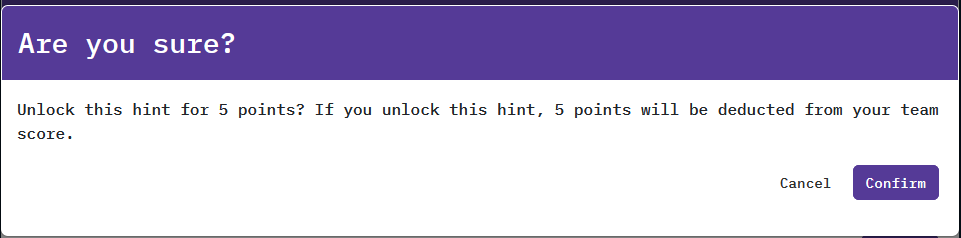
To view hints, shown beneath the attachment link and outlined in blue above, click on Hint. It is important to note that hints cost points, the amount of which is designated in the next pop-up window.
-
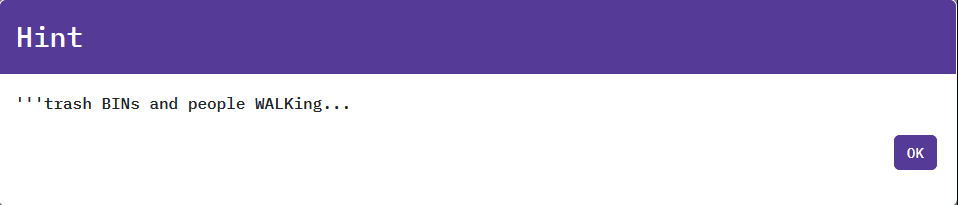
To proceed, select Confirm and the hint will display. To close the hint window, click the OK button. You will be able to view the hint at any time after you have paid your points.
-
-
Once you are ready to solve, type your answer into the Flag input field of the challenge window. Select Submit, and the CTF will display if you are correct or not.
Note
Remember that teams can only solve a challenge once. For more information on managing your team, please refer to the article titled Team Management.
Have a Question? Contact Support
If you experience any issues starting or viewing Cloud CTF in your web browser, please refer to the article titled Can't Launch Cloud CTF for helpful tips on resolving the matter.
If you still have questions after reviewing the information above, please reach out to your CTF Admin or Instructor who can submit a ticket to our Support Team on your behalf.
Thank You for Your Feedback!